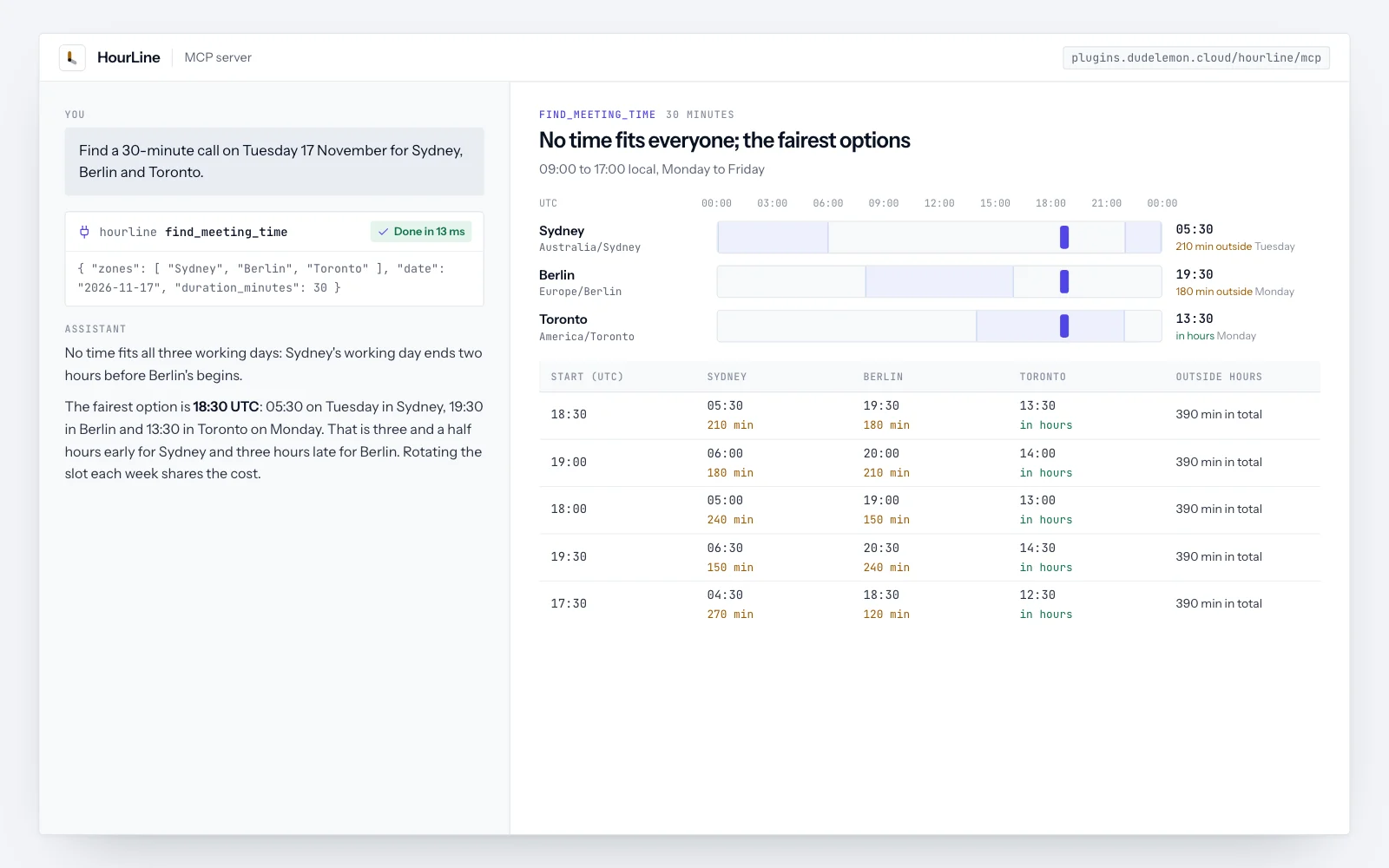
Every MCP server installs the same way in principle: you tell your assistant how to start the server, or where to find it. What changes is where you put that one line. This guide uses HourLine, a free remote server for time zones, as the example for remote servers, and a placeholder package for local ones. Swap in the server you want.
Before you start
- Check whether the server is local (a command such as
npx -y <package>) or remote (a web address ending in/mcp). The install box on each listing shows the right steps for your assistant. - Local servers that use
npxneed Node.js 18 or later on your computer. Remote servers need nothing installed. - Have the key or connection string ready if the server needs one. Never paste it into a file you commit to git.
Claude Code
Claude Code adds servers from the terminal. For a remote server, give the address:
Terminal
claude mcp add --transport http hourline https://plugins.dudelemon.cloud/hourline/mcpFor a local server, everything after -- is the command that starts it:
Terminal
claude mcp add your-server -e API_KEY=your key -- npx -y package| Scope | Who gets the server | How to choose it |
|---|---|---|
| Local (default) | You, in this project only | Nothing to add |
| Project | Everyone who opens this project; saved in .mcp.json | --scope project |